How do I use it?
From setup to your first translation — start translating everything on your screen in a couple of minutes.
In the screenshots, the highlighted area and the numbered labels show where to tap in that step. Click an image to open it full size.
Setup and permissions
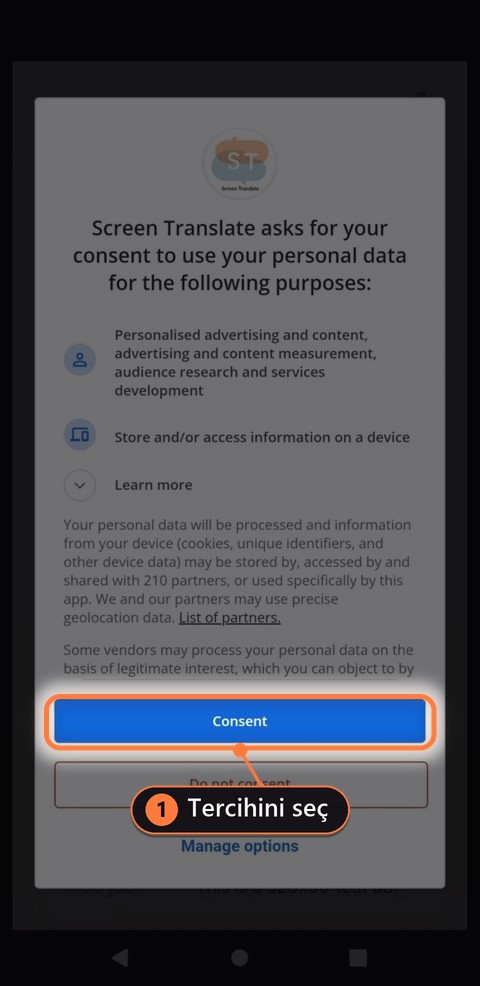
Ads and data consent
On first launch the app asks for consent to show ads; grant it or not, as you prefer.
NOTE · This consent only applies in regions and countries where it is legally required.
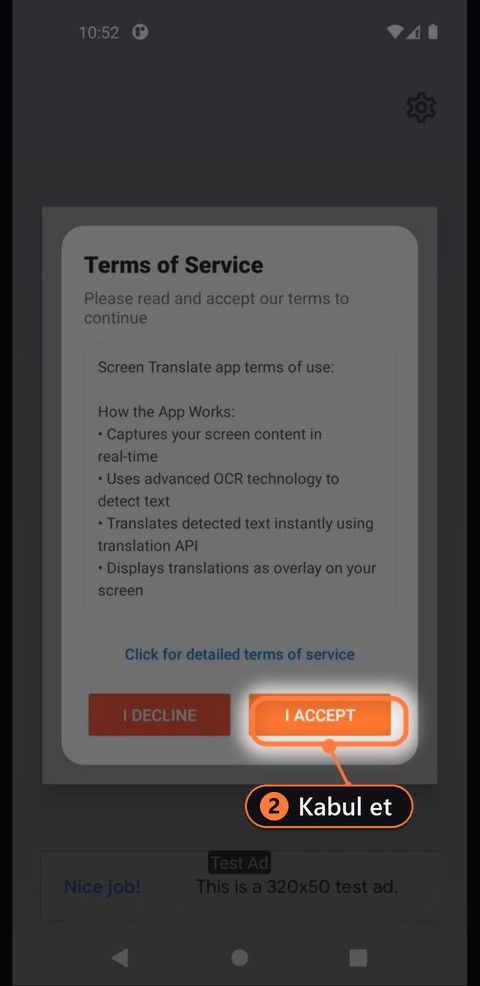
Accept the terms of service
Read and accept our terms of service.
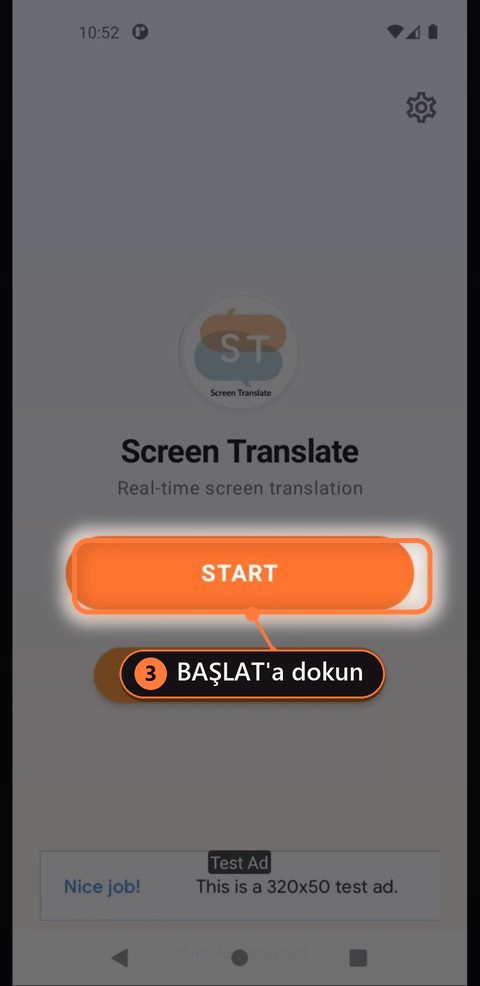
Tap Start
Tap the START button to begin setup.
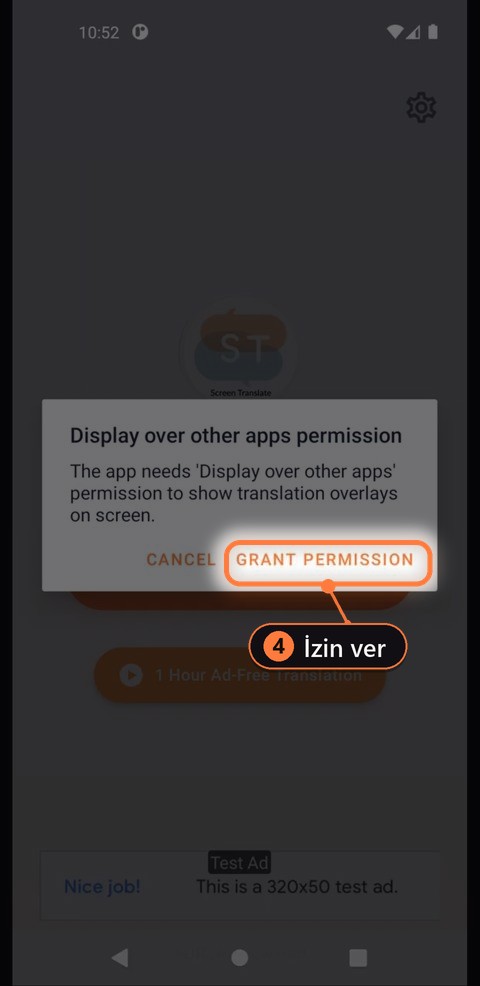
Display over other apps
Grant the permission Screen Translate needs to run on top of other apps. It is what lets translations appear live on your screen.
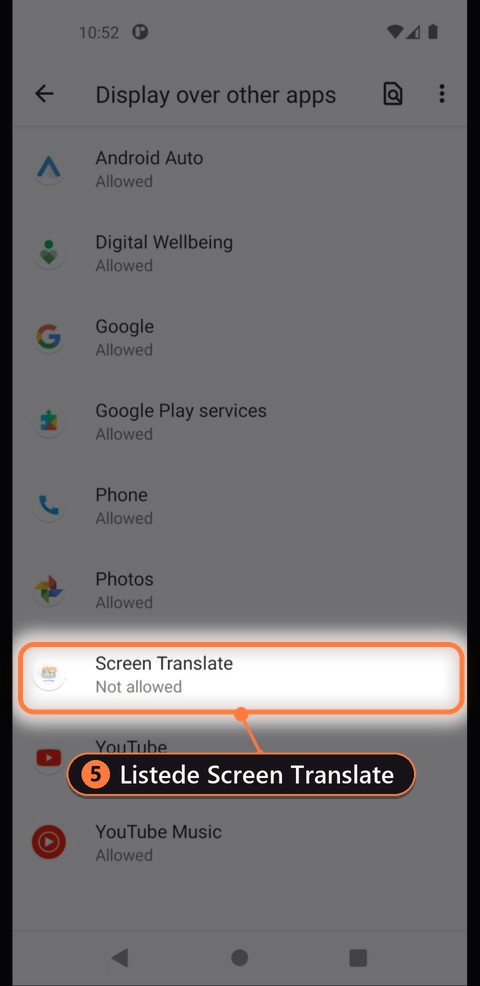
Find the app
On the settings page that opens, find Screen Translate and tap it.
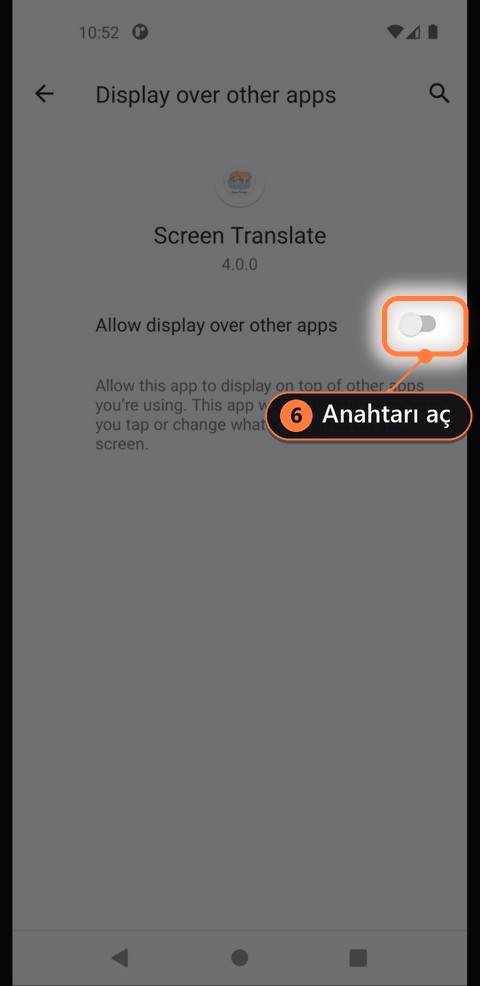
Turn the permission on
Switch the toggle on to confirm.
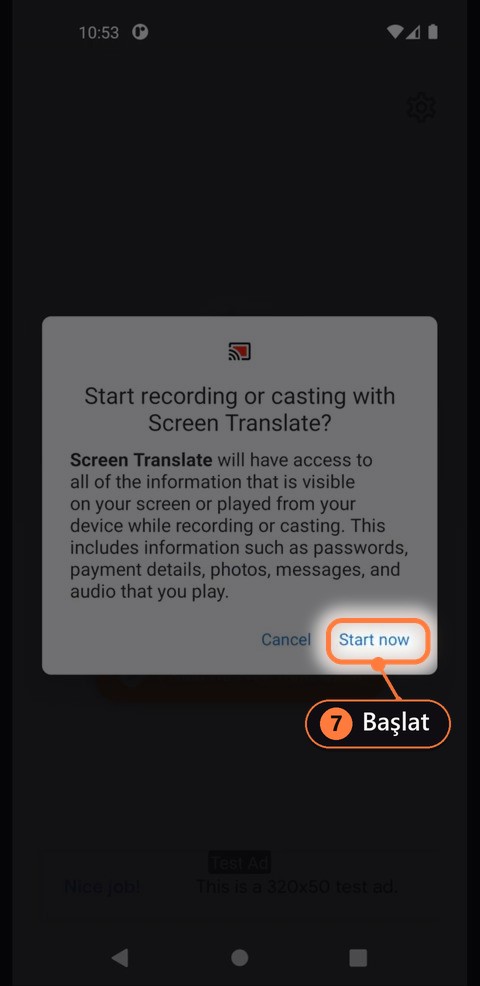
Screen recording permission
Tap Start here to allow screen recording.
First run and settings
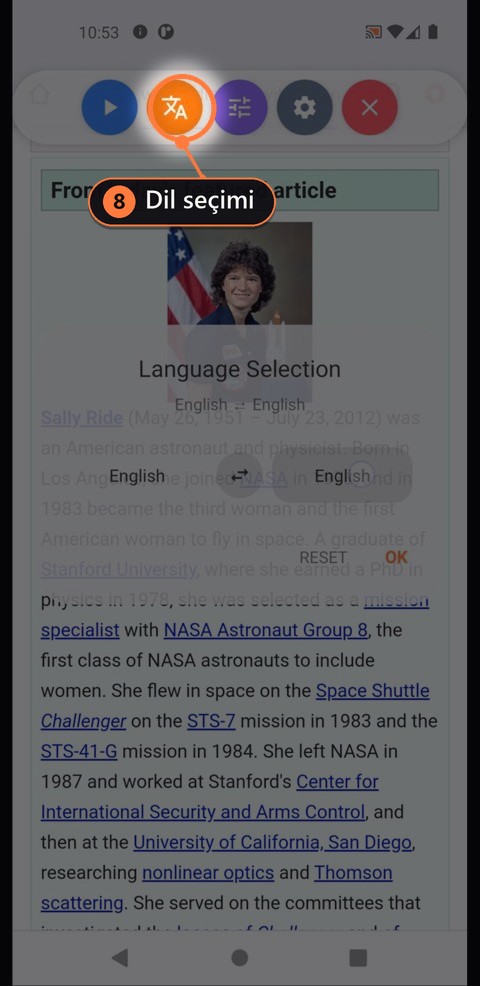
Language selection
On the overlay panel that appears, tap the language button. Then choose your source and target language and tap OK.
NOTE · No translation will appear until you have chosen your languages.
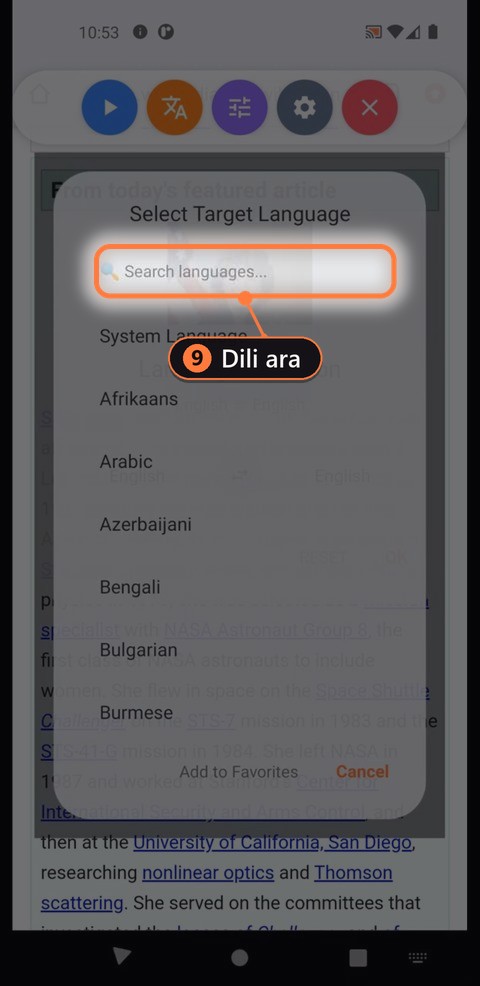
Searching for a language
You can also search on the language selection screen.
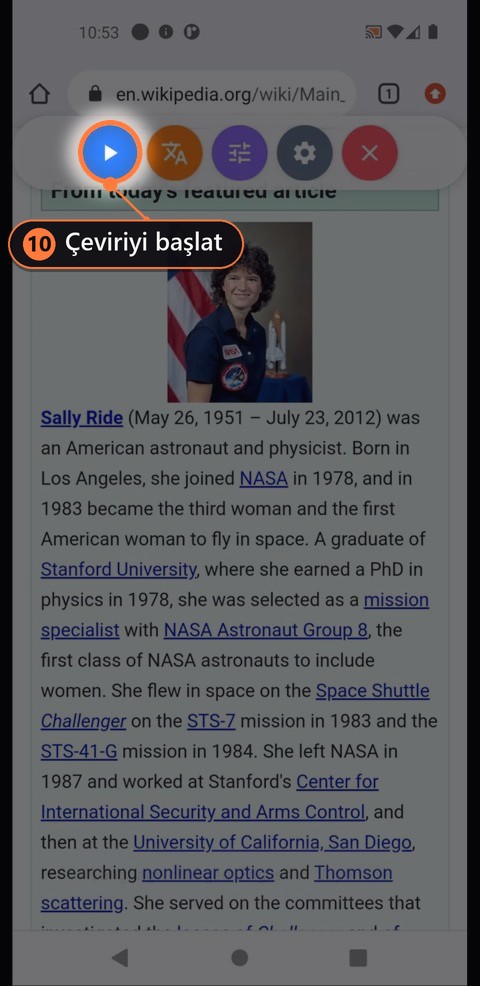
Start translating
Use the play button to start translating, or go to the settings page to adjust a few options first.
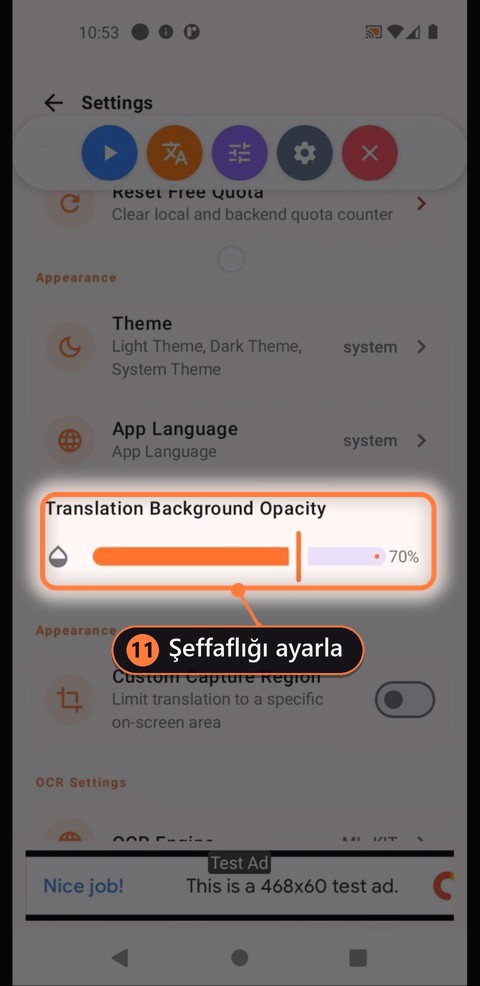
Background opacity
Setting the background opacity to 100% hides the original text underneath.
NOTE · On newer Android versions (API 33 and above) the original text underneath is not hidden completely, even at 100%. This is a restriction of the Android platform itself.
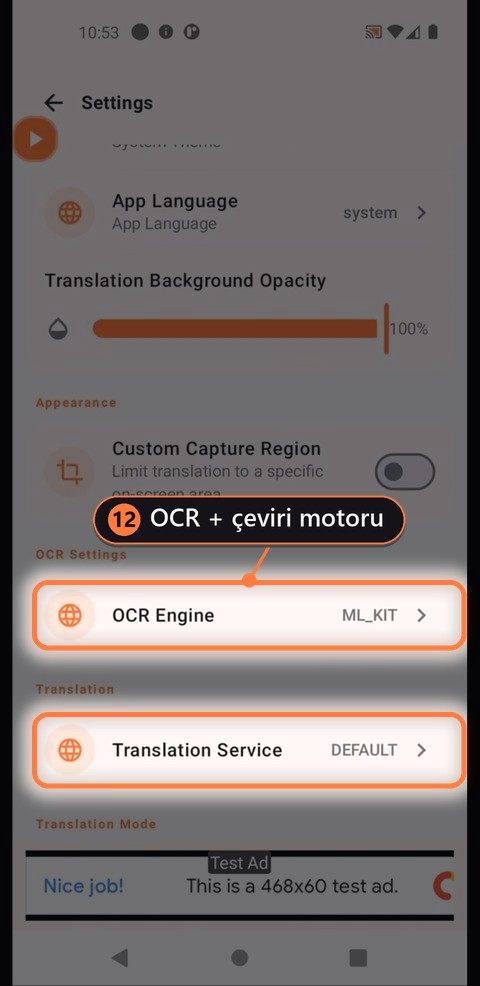
OCR and translation engine
This section is where you choose the engine that extracts text from the screen (OCR) and the translation service.
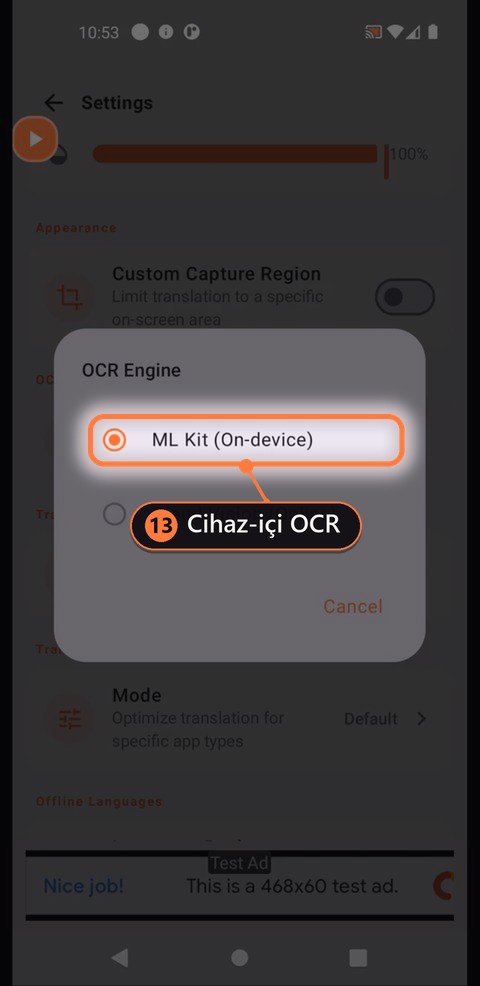
ML Kit OCR — entirely on device
ML Kit OCR runs entirely on your device. Nothing is sent to any translation service over the internet.
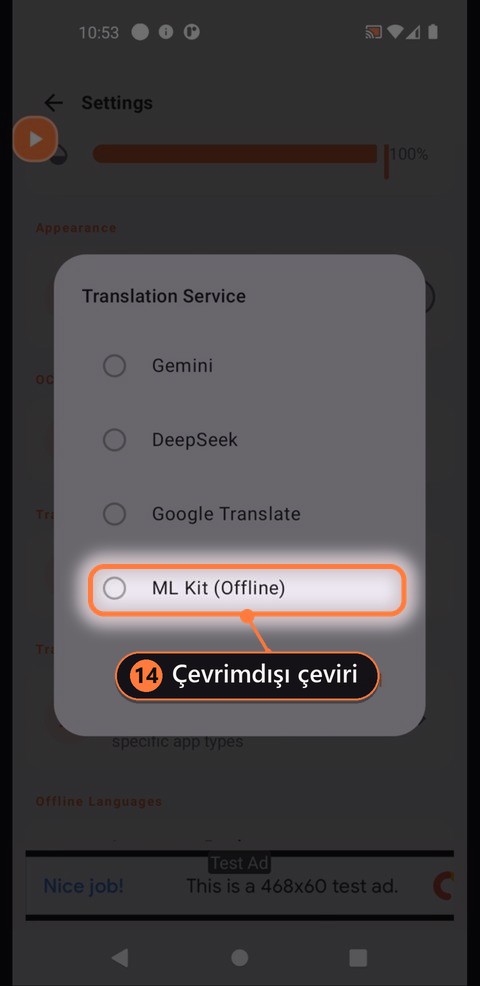
ML Kit translation — entirely on device
ML Kit translation also runs entirely on your device; your data never leaves it.
Using it, and a few tricks
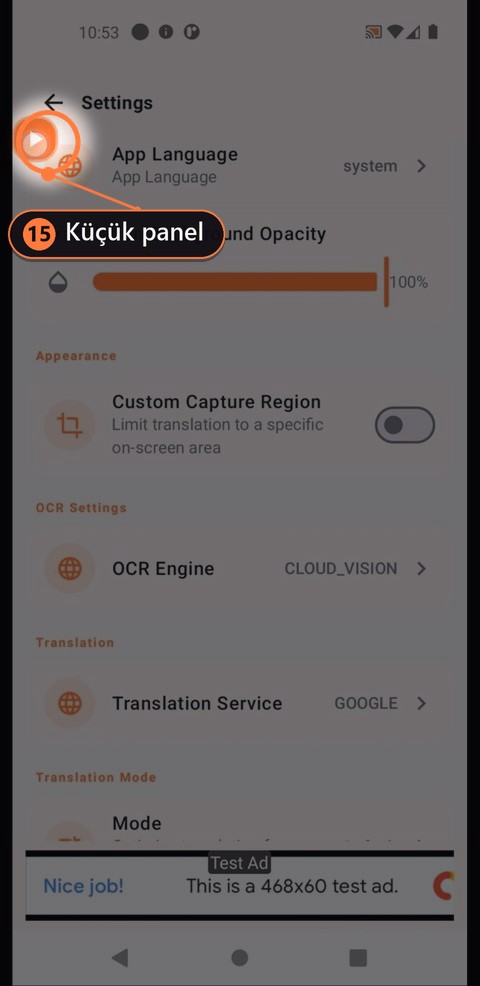
Compact panel (play / pause)
When the overlay panel is collapsed it becomes a play/pause control only. Double-tap to expand it again, or single-tap to start and stop translating.
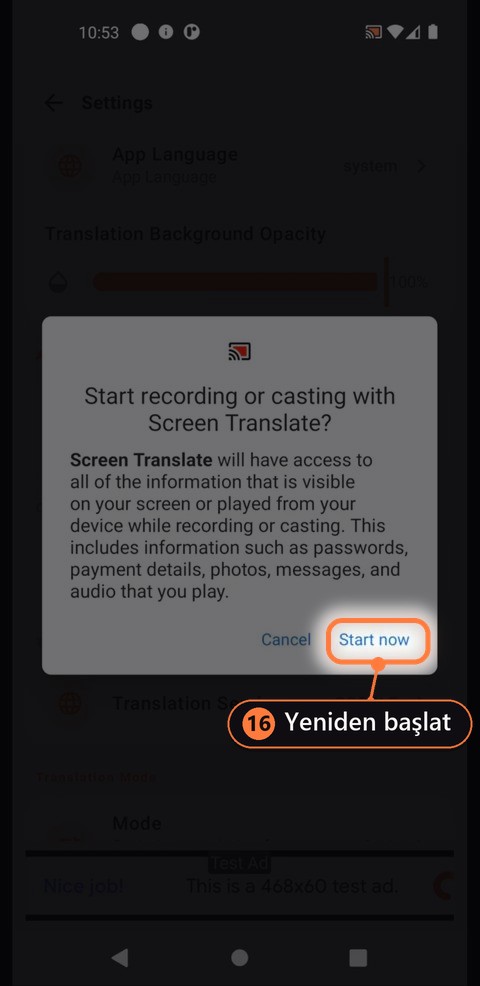
Restarting
After a single tap on play, you are asked for the screen recording permission again. Grant it and translation starts.
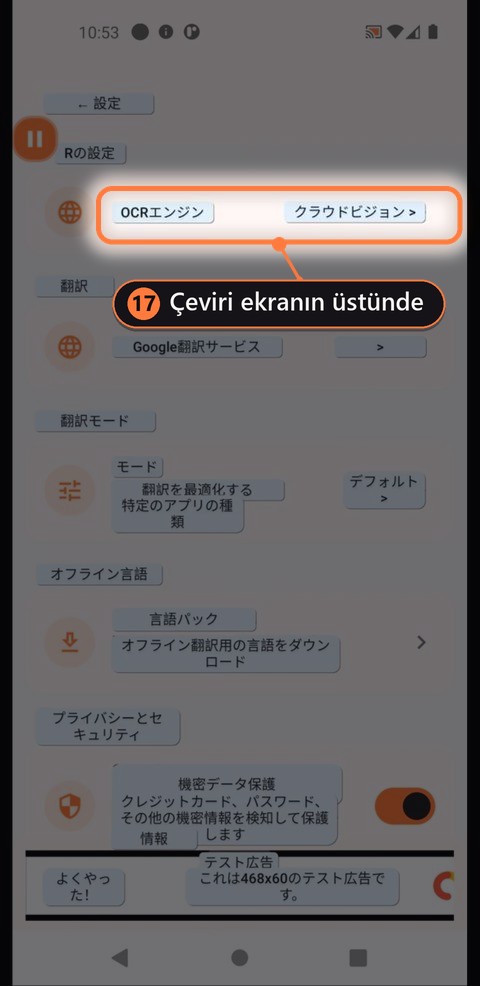
Carry on using your phone
Once the first translations appear you can simply carry on using your phone. Your taps clear the translations and a fresh translation of the screen arrives.
Sometimes a new translation does not quite cover the original text, or lands in the wrong place; tap an empty spot on the screen to make the translations settle correctly.
Modes
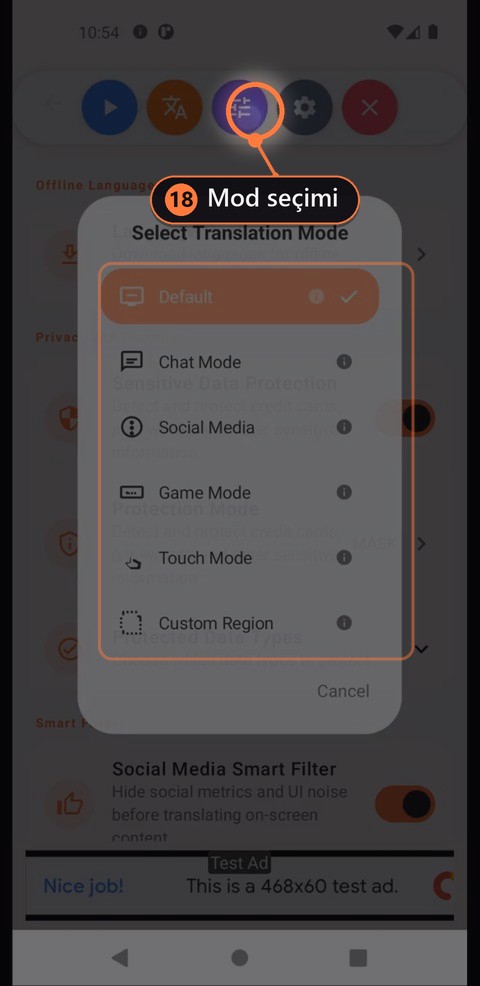
Mode selection
This button lets you pick a mode. Each one has its own strengths:
Translates every piece of text it sees on the screen.
With a special accessibility permission, translates messages as they arrive in chat apps (WhatsApp, Instagram, Facebook). It only follows chat text and never asks for screen permission.
Filters out hashtags, comments, likes and similar noise so that only the main content is translated.
Designed to run as lightly as possible, so there is no lag or stutter on screen.
Tap a word to translate just that word, or draw across a sentence to translate just that sentence. Double-tap an empty area to scroll the page.
Translates only inside the area you mark out. Drag the corners to resize it.
For manga and webtoon pages: finds the speech balloons, reads vertical Japanese and translates the whole page in one go. Details below ↓
Not in the mode picker — it is the Travel Translate button on the home screen. Photograph a menu, a sign or a document; the AI translates it instantly and adds a short context note.
Manga mode and Manga OCR
Manga mode is built for reading manga and webtoon pages: it finds the speech balloons, reads the text inside them (including vertical Japanese) and translates the whole page in a single request . The translations are drawn over the balloons; when you scroll, the new page is processed automatically.
Starting Manga mode
In the mode picker on the floating button, tap Manga. Set the source language to Japanese, Chinese or Korean, and the target language to your own.
As soon as the page appears, the balloons are detected and the translations are placed over them. Fitting the text into the balloon is automatic.
When you move to the next page the translation refreshes by itself. Each page is handled with a single translation request — on the free plan, only the minutes you spend translating count.
Manga OCR: a dedicated on-device engine for Japanese (optional)
Standard OCR engines can struggle with vertical Japanese and with the handwriting-like fonts used in manga. Manga OCRis an additional recognition engine trained only on Japanese manga balloons, running entirely on your device. You download it once; after that, balloon text is read on your phone and the cloud is used only for the translation.
Pick Manga OCRfrom the list. The first time you select it, you are asked to confirm the download.
Wi-Fi is recommended. If the download is interrupted it resumes where it left off, and the files are integrity-checked. It does not increase the size of the app itself — it only downloads if you ask for it.
Balloon positions still come from the standard engine you selected; Manga OCR re-reads the Japanese text inside each balloon. If a page is not Japanese, Manga OCR switches itself off and the standard engine carries on.
Manga OCR was trained for Japanese alone. For Chinese manhua and Korean webtoons, the standard engines (ML Kit, Azure, Cloud Vision) already work in Manga mode.
The model runs on your device; balloon images are never sent to the cloud for recognition. Only the text that was read is sent, for translation.
On a mid-range phone a typical page is translated in 3–6 seconds (it depends on the number of balloons). Newer, more powerful devices are faster.
Settings › Privacy and Data › Clear Translation Cache also deletes the model. You can download it again if you want to.
Manga OCR is based on the open-source manga-ocr model (Apache 2.0). It requires Android 7.0 or above.
Need more help?
Have a look at the FAQ, or write to us directly.